
geometrix - Fotolia
Find and filter Windows event logs using PowerShell Get-EventLog
Use the Get-EventLog cmdlet in PowerShell to pinpoint problems among thousands of entries in Windows logs, on both local and remote systems.

The Windows OS is designed to create a record of various system events by writing entries into event logs. Administrators normally access the event logs through the Windows Event Viewer. However, it's also possible to view logging data through Windows PowerShell.
How does event logging work?
The Windows OS writes errors and other types of events to a collection of log files. Many applications are also designed to write data to the Windows event logs. Windows provides a variety of individual logs, each of which has a dedicated purpose. The core Windows logs include:
- Application. Initially, Windows applications were designed to write application-related logging data to the Application log. Today, this log exists for backward compatibility purposes. Most application specific logging data is now written to the Applications and Services log, which enables individual logs to be created for each application.
- Security. The Security log stores security related events.
- Setup. The Setup log provides information about the OS and patch installation.
- System. The System log contains events related to the OS's health and functionality.
- Forwarded Events. The Forwarded Events log acts as a repository for events that occurred on a remote computer.
Event Viewer
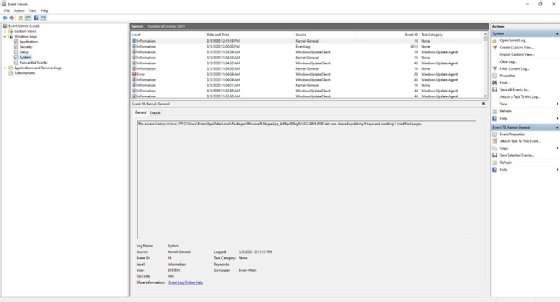
As previously noted, the Event Viewer is the native graphical tool used to access the Windows event logs, although many third-party tools are also available. The Event Viewer is divided into three main panes. The pane on the left lists the individual event logs and enables you to select the log you want to view. With a log selected, the pane in the upper right portion of the screen lists the events within that log. These events are listed in chronological order but can be sorted based on severity (level), source, event ID or category.
The pane in the lower right portion of the window displays the details of the log entry that is currently selected. For each event, Windows displays the log name, source, event ID, level, user, OpCode, date and time when the event was logged, task category, keyword and user.
Get-WinEvent vs Get-EventLog
PowerShell provides two main cmdlets for accessing the Windows event logs. These cmdlets are Get-WinEvent and Get-EventLog. Both cmdlets can retrieve event log entries from the local computer and remote computers. The most important difference between the two cmdlets is that the Get-WinEvent cmdlet works with the classic event logs that were first introduced in Windows Vista, while the Get-EventLog cmdlet doesn't.
The Get-WinEvents cmdlet uses the concept of list providers. A list provider is a component that is configured to write logging data to a specific event log. For example, logging data related to the Trusted Platform Module is handled by the TPM list provider, which sends TPM-related logging data to the System log.
You can view the list providers by entering the following command:
Get-WinEvents -ListProvider *
The asterisk functions as a wildcard character, indicating that all list providers should be shown. However, there are dozens of list providers, so it's usually more practical to specify the name of a list provider -- in this case, TPM -- or even a partial name. T*, for instance, would list the list providers starting with the letter T. To see the events related to the TPM list provider, use this command:
(Get-WinEvent -ListProvider TPM).Events
Retrieving logging data from a classic log using the Get-WinEvent cmdlet is usually a simpler matter. Just append the name of the log file to the Get-EventLog cmdlet. If you want to see the system events in the System log, for example, you can do so with this command:
Get-EventLog -LogName System
Checking logs on remote machines
If you need to retrieve logging data from a remote computer rather than from the local host, you must incorporate the ComputerName parameter in your command. If, for example, you want to retrieve the contents of the System logs from a remote computer named Server1, you can use this command:
Get-EventLog -LogName System -ComputerName Server1
Similarly, you can use the Get-WinEvent cmdlet to retrieve TPM-related log entries from a remote computer named Server1 by using this command:
(Get-WinEvent -ListProvider TPM -ComputerName Server1).Events
Keep in mind that both commands assume you are able to perform DNS name resolution for the remote computer and that you have permission to access the remote computer's event logs.
Finding problems on multiple computers
PowerShell makes it relatively easy to retrieve logging data from multiple computers. In fact, the process is nearly identical to that of retrieving logging data from a remote computer. If you're using the Get-EventLog cmdlet, then you must include the LogName parameter and the ComputerName parameter. If, for example, you want to retrieve the System logs from Server1, Server2 and Server3, use this command:
Get-EventLog -LogName System -ComputerName Server1, Server2, Server3
The Get-WinEvent cmdlet also makes use of the -ComputerName parameter. If you want to retrieve TPM-related log entries from Server1, Server2 and Server3, you can use this command:
(Get-WinEvent -ListProvider TPM -ComputerName Server1, Server2, Server3).Events
Example commands
Regardless of whether you're retrieving log entries using the Get-EventLog cmdlet or the Get-WinEvent cmdlet, the log files are likely going to contain too much data to look through. You can use PowerShell to filter the event logging data so that only the most relevant events are shown.
You can filter log entries based on a time range, property values -- such as event IDs -- or even a specific word, such as Active Directory or Group Policy. There are many different ways to filter logging data, but the most common method involves using either the Get-EventLog or the Get-WinEvent cmdlet to retrieve the logging data, and to then treat that data as pipeline input for the Where-Object cmdlet.
The Where-Object cmdlet uses an operator such as equals (-eq), not equal (-ne), greater than (-gt) or less than (-lt) to compare a source parameter against a property parameter.

Suppose you want to find all occurrences of a distributed COM error with an Event ID of 10010 in the system log. The first thing you must do is use the Get-EventLog cmdlet to retrieve the system log. Then use the pipeline to join the Get-Eventlog command to the Where-Object command. You can examine the log entries to find any log entries where the Event ID is equal to 10010. The command for doing so is:
Get-EventLog -LogName System | Where-Object {$_.InstanceID -eq '10010'}
Keep in mind that you can filter based on any available parameter and that wildcard characters are supported.