
michelangelus - Fotolia
What are port scan attacks and how can they be prevented?
Port scans provide data on how networks operate. In the wrong hands, this info could be part of a larger malicious scheme. Learn how to detect and defend against port scan attacks.
Port scans, which are used to determine if ports on a network are open to receive packets from other devices, can be beneficial to security teams to help shore up defenses. But the process can also be used by malicious actors trying to find vulnerable ports to attack.
Before digging into what port scan attacks are and how to prevent and defend against them, let's look at what ports and port scanning are.
What is a port?
A port is a communication endpoint through which units of data, known as packets, flow. Transport layer protocols use port numbers to communicate and exchange packets. The most well-known transport layer protocols are Transmission Control Protocol (TCP), a connection-oriented protocol that requires an established connection before sending data, and User Datagram Protocol (UDP), a connectionless protocol that does not require a two-way connection be established for communication to begin.
Each port used by TCP and UDP is associated with a specific process or service. Port numbers, which range from 0 to 65535, are standardized across network-connected devices. Port 0 is reserved in TCP/IP networking and should not be used in TCP or UDP messages. Ports 1 through 1023 are well-known ports used as defaults for internet protocols, as defined by the Internet Assigned Numbers Authority (IANA).
Port numbers in the range of 1024 to 29151 are set aside for ports registered with IANA to be associated with specific protocols. Ports in the range of 49152 through 65535 are ephemeral ports that are used as needed to address dynamic connections.
Some of the most used ports include the following:
- TCP port 80 and UDP port 80 are used for HTTP.
- TCP port 443 and UDP port 443 are used for HTTPS.
- TCP port 465 is used for mail servers, such as Simple Mail Transfer Protocol.
What is port scanning and what is it used for?
A port scan is a series of messages sent by someone to learn which computer network services a given computer provides. Port scanners are applications that identify which ports and services are open or closed on an internet-connected device. A port scanner can send a connection request to the target computer on all 65,536 ports and record which ports respond and how. The types of responses received from the ports indicate whether they are in use or not.
Corporate firewalls can reply to a port scan in three ways:
- Open. If a port is open, or listening, it will respond to the request.
- Closed. A closed port will respond with a message indicating that it received the open request but denied it. This way, when a genuine system sends an open request, it knows the request was received, but there's no need to keep retrying. However, this response also reveals the existence of a computer behind the IP address scanned.
- No response. Also known as filtered or dropped, this involves neither acknowledging the request nor sending a reply. No response indicates to the port scanner that a firewall likely filtered the request packet, that the port is blocked or that there is no port there. For example, if a port is blocked or in stealth mode, a firewall will not respond to the port scanner. Interestingly, blocked ports violate TCP/IP rules of conduct, and therefore, a firewall has to suppress the computer's closed port replies. Security teams may even find that the corporate firewall has not blocked all the network ports. For example, if port 113, used by Identification Protocol, is completely blocked, connections to some remote internet servers, such as Internet Relay Chat, may be delayed or denied altogether. For this reason, many firewall rules set port 113 to closed instead of blocking it completely.
The general objective of a port scan is to map out a system's OS and the applications and services it runs in order to understand how it is protected and what vulnerabilities may be present and exploitable.
Types of port scans
Because TCP and UDP are the most used transport layer protocols, they are often used in port scanning.
By design, TCP sends an acknowledgement (ACK) packet to let a sender know if a packet has been received. If information is not received, is rejected or is received in error, a negative ACK, or NACK, packet is sent. UDP, on the other hand, does not send an ACK when a packet is received; it only responds with an "ICMP [Internet Control Message Protocol] port unreachable" message if information is not received.
As such, several types of port scanning techniques exist, including the following:
- A ping scan, or sweep scan, scans the same port on several computers to see if they are active. This involves sending out an ICMP echo request to see which computers respond.
- A TCP SYN scan, or TCP half-open scan, is one of the most common types of port scans. It involves sending TCP synchronize (SYN) packets to initiate communication but does not complete the connection.
- A TCP connect, also known as a vanilla scan, is like a TCP SYN scan in that it sends TCP SYN packets to initiate communication, but this scan completes the connection by sending an ACK.
- A strobe scan is an attempt to connect only to selected ports, usually fewer than 20.
- A UDP scan looks for open UDP ports.
- In an FTP bounce scan, an FTP server is used to scan other hosts. Scanning attempts directed through an FTP server disguise the port scanner's source address.
- In a fragmented scan, the TCP header is split up over several packets to prevent detection by a firewall.
- Stealth scans involve several techniques for scanning an attempt to prevent the request for connection from being logged.
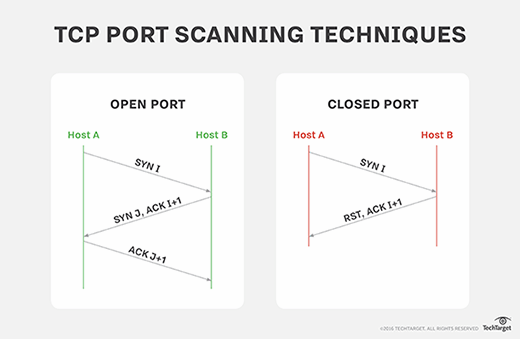
What is a port scan attack?
Port scanning does not necessarily indicate an attack. It's important to know why the port scan information is being collected and what it is being used for.
Port scanning is one of the most popular information-gathering methods used by malicious actors. Part of the reconnaissance process, an attacker can use the data collected by a port scan to find out what services a device is running and to get an idea of the OS being used. This data can then be used to flag vulnerable systems with the intention of exploiting them to gain access to the network.
On the other hand, security teams and penetration testers can use port scan data to identify vulnerabilities, new devices on a network that may need attention, potential misconfigurations and other holes in security coverage to shore up defenses.
When a router reports multiple periodic occurrences of probing by brute force, the router is recording port requests from a port scanner. This may or may not be malicious because most internet-facing systems get scanned every day.
The practice of port scanning is as old as the internet. While protocols have changed over time and security tools and systems have evolved over the years, port scan alerts must still be detected and attended to, especially when it is not the security team scanning its own systems.
How to detect a port scan attack
A port scan attack must be detected before it can be stopped. When properly installed and configured, modern security appliances are quite effective at detecting port scans by keeping track of attempts to access systems in the local network.
Most security appliances can link ongoing repeated scan attempts from the same source whether they target a single host or multiple hosts. To be effective, port scan attacks may need to probe many different ports on many different systems over a relatively short time period, which makes the attempts easier to detect. To counter this, some attackers may find it preferable to probe for open ports over a much longer time frame, in which case it becomes more difficult to detect a port scan attack. The downside for the attacker, however, is that it may take hours, days or longer to find a vulnerable system.
How to prevent and block port scans in the network
It is impossible to prevent the act of port scanning; anyone can select an IP address and scan it for open ports. To properly protect an enterprise network, security teams should find out what attackers would discover during a port scan of their network by running their own scan. Be aware, however, that security assessments and pen tests against many cloud hosting services, such as AWS, need approval prior to scanning.
Once security admins find out which ports respond as being open, they can review whether these ports need to be accessible from outside the corporate network. If not, security admins should shut them down or block them. If the open ports are deemed necessary, admins should begin to research what vulnerabilities and exploits the network is open to and apply the appropriate patches to protect the network.
Some types of firewalls use adaptive behavior, which means they will block previously open and closed ports automatically if a suspect IP address is probing them. Firewalls also can be configured to alert administrators if they detect connection requests across a broad range of ports from a single host. Hackers can get around this protection by conducting a port scan in strobe or stealth mode, however.
Firewalls and intrusion detections systems should always be configured to spot and block unusual connection attempts and requests. For example, after a port scan has been completed, attackers may launch a few probing attacks to validate earlier research or to gain additional information needed to finesse their main attack. Feeding abnormal activity into a SIEM system can provide real-time feedback and improve automated responses to events.
Port scanning tools
A variety of tools can be used to perform a port scan, including the following:
- Nmap
- Advanced Port Scanner
- Angry IP Scanner
- Metasploit
- Netcat
- NetScanTools
- SolarWinds Port Scanner
- Unicornscan