Home > Networking Tips > Wireless Networks > WLAN troubleshooting with spectrum analyzers
Networking Tips:
EMAIL THIS
 TIPS & NEWSLETTERS TOPICS 

WIRELESS NETWORKS

WLAN troubleshooting with spectrum analyzers


Lisa Phifer
10.11.2007
Rating: -4.86- (out of 5)


Wireless networks news, advice and technical information
Digg This!    StumbleUpon Toolbar StumbleUpon    Bookmark with Delicious Del.icio.us    Add to Google


When users complain that your wireless LAN (WLAN) is slow or broken, it's time to break out your Wi-Fi toolbox. Wireless protocol analyzers are great for diagnosing link, network and application layer issues that block or break connections. But in some cases, the culprit lies beneath all of these protocols at the physical layer. That's where spectrum analyzers can be indispensable.

Clearing the air
LAN administrators know that the first thing to rule out is physical disconnection from the network card, wall jack or switch port. Doing so for wireless is harder because you can't simply tug on an Ethernet cable. Instead, you must depend on indicators that reflect the state of the airlink you can't see, like Wi-Fi connection status and signal strength.

For some problems, you'll work your way up the stack, debugging mismatched 802.11 parameters, IP addressing and routing issues and, eventually, applications (see Wireless network troubleshooting: Connectivity). Before you embark upon that laborious process, take a minute to check the "air quality" between the user and access point (AP) with a spectrum analyzer.

Reading between the lines
WLAN protocol analyzers can only capture 802.11 packets. By inspecting 802.11 packets, tools like WildPackets OmniPeek or AirMagnet Handheld Analyzer can easily identify common WLAN problems like co-channel interference. They can also show the impact that non-802.11 transmissions have on Wi-Fi associations and applications.

But a protocol analyzer can't tell you what's causing non-802.11 interference. For that, you need a spectrum analyzer like Cognio Spectrum Expert, MetaGeek Wi-Spy or BVS BumbleBee. Cognio's analyzer is also sold by AirMagnet Inc., Fluke Networks and WildPackets Inc.

Spectrum analyzers are portable tools that combine a PC card or USB fob with laptop or PDA software. That specialized hardware listens to energy in the 2.4 GHz and 5 GHz unlicensed bands shared by WLANs, measuring the power (amplitude) of radio transmissions and pulses that occur at discrete frequencies. The associated software uses statistical analysis to plot spectral usage, letting you visualize and quantify air quality.

In addition, some spectrum analyzers can uniquely identify and classify energy sources and help you determine their approximate locations. With this kind of help, you can take steps to shield, replace or eradicate those troublesome interferers that degrade enterprise WLAN operation and performance.

Troubleshooting RF interference
Non-802.11 devices that generate RF energy can have varied impacts on your WLAN. Some operate intermittently for brief periods (e.g., microwave ovens), while others transmit continuously (e.g., analog video cameras). Some devices emit low power over a narrow frequency band (e.g., Bluetooth), while others have far greater impact on Wi-Fi (e.g., 2.4 GHz TDD cordless phones). When troubleshooting interference, your goal is to identify the source, assess its impact and determine the right course of action.

Step 1: Start by inspecting obvious symptoms exhibited by the Wi-Fi client using connection status and common network debugging tools like Ping (to measure network reachability, latency and loss) and Iperf (to measure application throughput).

examine WLAN client symptoms
Figure 1. Examine WLAN client symptoms. (Click image to enlarge)

Figure 1 illustrates what you're likely to see when you ping a reachable destination during a brief burst of wideband RF interference. Although the Wi-Fi signal still looks strong, latency increases and packets are lost. This degradation can slow file downloads and cause streaming video or packetized voice dropouts. If the interference persists, the connection's data rate may drop; eventually, sessions and associations will become disconnected.

Step 2: If the Wi-Fi client can send traffic but experiences this kind of poor performance, break out your WLAN protocol analyzer. Capture 802.11 traffic near the client, looking for time periods where latency increases, throughput declines or sessions break.

First, rule out interference from other Wi-Fi devices operating on the same or adjacent channels. Co-channel interference can have a big impact on AP performance and is fairly easy to spot with a protocol analyzer. If another AP or ad-hoc node is competing with your AP for airtime, you might change your AP's channel or remove the interferer.

investigate symptoms using WLAN analyzer
Figure 2. Investigate symptoms using WLAN analyzer.

Otherwise, if your AP has exclusive use of the channel, drill down into the client's traffic, examining AP/client parameters, channel utilization and 802.11 traffic counters. Figure 2 shows AirMagnet Laptop watching client 00:08:7D:1A:5D:12 during wideband RF interference. Here, we can see wide fluctuation in signal to noise ratio (SNR), accompanied by a burst of retransmissions and CRC errors. This coincides with the period of packet loss shown in Figure 1. If you were troubleshooting a voice problem, you might also use a VoFi analyzer to see call quality metrics like MOS and R-Value.

Step 3: Given these symptoms of RF interference, it's now time to determine the cause. You could hunt around for an obvious source, like a nearby microwave oven. But to save time, and to find more subtle interferers, use a spectrum analyzer to record, pause and replay RF energy observations. By looking at spectral usage graphs before, during and after the affected time periods, you can find significant RF activity.

investigate symptoms using WLAN analyzer
Figure 3. Use spectrum analyzer to visualize airwaves.

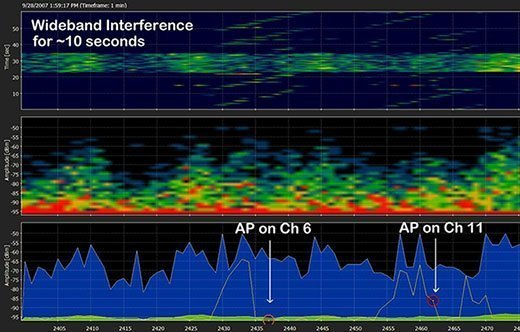
Figure 3 shows a recording made by MetaGeek Wi-Spy, played back through Chanalyzer. Here, we can see RF energy (measured in dBm) being plotted in real time. At the bottom, a planar view shows the max, average and current power levels observed at each frequency in the 2.4 GHz band. A pair of Wi-Fi APs can be seen operating at channels 6 and 11, centered at 2.437 and 2.462, respectively. But the blue max area shows that energy was also at some point emitted across the entire band.

To see why, look at the top graph. This swept spectrogram plots RF energy as it occurs over a period of time. Here, the horizontal green band indicates that a burst of wideband RF energy spanned the entire spectrum for roughly ten seconds. Before and after that burst, we see "normal looking" Wi-Fi activity on channels 6 and 11.

Devices that emit RF energy often end up producing waveforms that are easily recognized. Spectrum analyzers come with a few sample captures that can help you learn what to look for. These graphs also let you see which frequencies are being impacted, helping you choose alternate channels to avoid that interference. Unfortunately, wideband interference impacts every channel -- including those occupied by our APs. So we dig a bit deeper.

Step 4: Experienced administrators can become familiar with well-known RF energy patterns -- the signatures associated with particular kinds of radio devices. But you might prefer to use a spectrum analyzer that automates that process by classifying transmitters based on the frequencies, modulation, pulse types (continuous or burst), operation types (analog or digital) and protocol framing methods they use.

investigate symptoms using WLAN analyzer
Figure 4. Identify and fingerprint the interference source.

Figure 4 gives an example of the device classification performed by AirMagnet Spectrum Analyzer when troubleshooting our wideband interference problem. We can see more than a dozen devices emitting RF energy near the spectrum analyzer. The analyzer correlated transmissions to individual source devices, in some cases supplying identifiers carried in link layer protocols (e.g., MAC addresses, Piconets). The analyzer also came up with a probable device type for each source -- here we can see several 5 GHz cordless phones, a microwave oven, our own AP and a generic wideband interferer.

Note that not all devices are actively transmitting at any time, so the analyzer lets us see both active devices and a historic list of devices seen in the past. We can use controls to focus our search by narrowing frequencies, amplitudes and time periods or by tracing a particular device. We can also use manual classification to tag known/unknown APs, letting us analyze how other interferers are impacting our AP and how their energy level compares to our AP's own power and background noise.

Step 5: To eliminate an interference source, you must be able to find the transmitter. A spectrum analyzer can speed that process by providing tools that let you view the strength of the RF energy emitted by a specific interferer in real time.

investigate symptoms using WLAN analyzer
Figure 5. Locate the device causing interference.

Figure 5 depicts the AirMagnet Spectrum Analyzer Device Finder tool. Here, we focus on the energy being emitted by our generic wideband interferer. We could use the signal strength graph to walk around the client, performing a hotter/colder search. But, in this example, we divided the search area into quadrants and used the finder to record signal strength in each quadrant. We then repeated that process, performing a second search in the quadrant with the strongest signal (lower –dBm reading) until we isolated the interferer's location in the upper left corner of our search area.

Step 6: Of course, the final step in this troubleshooting process is to take appropriate action. That may involve removing or reconfiguring the interferer. When those steps are not feasible, you might end up relocating your AP, changing its channel or even migrating from the 2.4 GHz band to the less crowded 5 GHz band.

Spectrum analysis can be performed on an as-needed basis. However, larger distributed WLANs may need a more comprehensive perspective, assisted by integrated spectrum analysis tools.

investigate symptoms using WLAN analyzer
Figure 6. Use integrated WLAN / spectrum analysis tools.

For example, Figure 6 depicts integration between AirMagnet Laptop and AirMagnet Spectrum Analyzer. This lets you drill directly from your WLAN protocol analyzer's view of a troubled AP or client to view an "interference score" produced by a spectrum analyzer. This kind of mobile tool integration can simplify as-needed troubleshooting.

In a larger WLAN, you might want to leverage the capabilities of wireless IPS sensors or even APs to capture 802.11 traffic and RF energy observations. Some analyzers can tap into those remote sensors/APs, letting you troubleshoot RF interference problems as described in this tip, while working from a central location.

Conclusion
In this tip, we barely scratched the surface of most spectrum analyzers. These powerful tools can help with many tasks, from WLAN design and RF modeling to performance optimization. When it comes to troubleshooting, you will probably be very surprised to discover just how many non-802.11 2.4/5 GHz wireless devices are operating in the vicinity of your WLAN.

However, not all of those devices will have an adverse effect on your WLAN. To learn more about the impact of various non-802.11 devices on WLAN data, video and voice traffic, see these Farpoint Group studies. You may also wish to consult these recommended practices for evaluating interference in wireless LANs (PDF).

Lisa Phifer

About the author:
Lisa A. Phifer is vice president of Core Competence Inc. She has been involved in the design, implementation and evaluation of data communications, internetworking, security and network management products for more than 20 years and has advised companies large and small regarding security needs, product assessment and the use of emerging technologies and best practices.


Rate this Tip
To rate tips, you must be a member of SearchNetworking.com.
Register now to start rating these tips. Log in if you are already a member.


Submit a Tip


Digg This!    StumbleUpon Toolbar StumbleUpon    Bookmark with Delicious Del.icio.us    Add to Google


RELATED CONTENT
Wireless Networks
How to plan for 802.11n wireless LAN upgrades
Deploying 802.11n access points: Best practices
Rogue access points: Preventing, detecting and handling best practices
Persistent, secure connections for roaming WiMAX, 3G and 802.11x
Securing embedded 802.11n devices
802.11n's impact on WLAN security
Set up secure wireless networks with 802.11x, access points and bridges
How to use Netsh WLAN to configure Windows Server 2008 and Windows Vista wireless connections from the CLI
How to avoid the WPA wireless security standard attack
IEEE 802.11w protects wireless LAN management frames

Troubleshooting Wireless Networks
Meru reinvents wireless LAN troubleshooting and management
APs drop connection in WLAN configured as a wireless mesh network
How to plan for 802.11n wireless LAN upgrades
Vendors strive to automate wireless LAN troubleshooting and management
Fluke gets WLAN design, management, security cred with AirMagnet
Wi-Fi RTLS for WLAN management, location-based security, asset tracking
How radio frequency (RF) of microwaves alter wireless signal strength
Distributed antenna systems and WLAN: A network management burden
Wireless LAN management platforms key differentiator for WLAN vendors
How is wireless access point (AP) coverage affected by frequency?
Troubleshooting Wireless Networks Research

Network Performance Management
Desktop virtualization network challenges: A primer
Green enterprise: Three networking investments that make a difference
Storage area networks change management primer
CA-NetQoS deal: Network management = application performance
Virtualization change and configuration management primer
Network change and configuration management primer
Distributed network management means no more hard NOCs
WLAN QoS and SLA monitoring with 7/24 Wireless Quality Assurance costs
Network management from a service-based perspective
Application switch testing: An easy RFP guide

RELATED GLOSSARY TERMS
Terms from Whatis.com − the technology online dictionary
802.11a  (SearchNetworking.com)
home agent  (SearchNetworking.com)
iDEN  (SearchNetworking.com)
radio frequency  (SearchNetworking.com)
repeater  (SearchNetworking.com)
spectrum analyzer  (SearchNetworking.com)

RELATED RESOURCES
2020software.com, trial software downloads for accounting software, ERP software, CRM software and business software systems
Search Bitpipe.com for the latest white papers and business webcasts
Whatis.com, the online computer dictionary

DISCLAIMER: Our Tips Exchange is a forum for you to share technical advice and expertise with your peers and to learn from other enterprise IT professionals. TechTarget provides the infrastructure to facilitate this sharing of information. However, we cannot guarantee the accuracy or validity of the material submitted. You agree that your use of the Ask The Expert services and your reliance on any questions, answers, information or other materials received through this Web site is at your own risk.


Networking Solutions for Business

Alcatel-Lucent Network Business Communications Solutions

About Us  |  Contact Us  |  For Advertisers  |  For Business Partners  |  Site Index  |  RSS
SEARCH 
TechTarget provides technology professionals with the information they need to perform their jobs - from developing strategy, to making cost-effective purchase decisions and managing their organizations' technology projects - with its network of technology-specific websites, events and online magazines.

TechTarget Corporate Web Site  |  Media Kits  |  Site Map


All Rights Reserved, Copyright 2000 - 2009, TechTarget | Read our Privacy Policy
  TechTarget - The IT Media ROI Experts