Ultimate guide to network management in the enterprise
This guide to network management explains the challenges of enterprise network monitoring and maintenance, best practices and next-generation automation using AI and ML.
Network management is a cornerstone of IT that helps ensure enterprises run efficiently and effectively end to end. Technologies such as AI and machine learning are beginning to automate many of the functions of network administration and management, which includes provisioning, security and optimization. These tools expand visibility into and control of the network and its devices without increasing the burden on IT teams. At the same time, network management has been reshaped by the impact of the COVID-19 pandemic, which forced employers to find new ways to extend management oversight to employees working from remote locations.
In this network management guide, we dig deep into functions, techniques, best practices, next-generation technology and more. The links embedded throughout the article lead to even more information and provide a better understanding of the important role network management plays in every enterprise.
Why is network management important?
To best illustrate the business need for a well-considered network management strategy, IT should calculate the cost of network downtime. Network downtime affects revenue, employee productivity, reputation damage, monetary damage and general Opex costs.
The monetary damage from network brownouts -- unanticipated and unplanned drops in network quality -- averages about $600,000 per organization, according to a 2019 survey from Juniper Networks Inc. Juniper later acquired network monitoring software provider Netrounds, which conducted the original survey before the Juniper acquisition. Whether expected or unexpected, downtime incurs costs that organizations can avoid or at least reduce with the help of network management.
In the past, companies might have justified taking a lighter approach to network management because achieving comprehensive visibility and monitoring required a large amount of skilled staff. Network automation has eased that burden by eliminating common labor-intensive manual network tasks, such as provisioning, scripting, implementing change requests and identifying causes of slowdowns and outages.
Automation also has brought about the following benefits:
- reductions in human errors;
- rapid provisioning of new services;
- the ability to locate and identify the root cause of network security issues; and
- reduced security risks because fewer manual processes mean fewer configuration or policy errors that can create vulnerabilities.
Network automation is just one of many concepts and terms that are important to know as you deepen your understanding of network management.
Network management functions
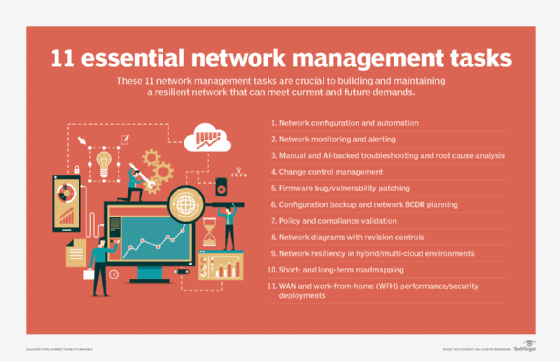
Network management comprises five major elements: fault management, configuration management, account management, performance management and security management (also known as FCAPS). Network management expert Amy Larsen DeCarlo detailed each of these elements, explaining their importance in administering and managing enterprise operations.
To account for the efficacy of these elements, network professionals use monitoring tools that watch the network end to end. These tools provide visibility into performance, traffic, usage, faults and availability. As expert Ed Tittel and IT writer Kim Lindros explained, "… careful network monitoring can facilitate proactive strategies, such as justifying the cost of hardware or infrastructure upgrades required to eliminate chronic network bottlenecks."
Network monitoring -- while available as network device logs, open source tools or proprietary monitoring features built into network products -- often performs better as a fully dedicated platform with a rich feature set and vendor support.
Along with network monitoring, organizations should carefully consider implementing a network analytics tool to compile the data gathered through monitoring and generate insightful and actionable reports. Network analytics and network monitoring tools should be able to span on-premises, remote, cloud or hybrid environments, as well as uniformly deal with wired and wireless infrastructure.
Conducting a network assessment that accounts for the various network components that can gather and analyze telemetry data will be essential to pick the tools most appropriate for your corporate enterprise. For instance, some platforms focus heavily on monitoring and reporting with a few out-of-the-box analytics features while others focus on deep root cause analysis and AI customization. Make sure to include IoT environments, if you have them, in your assessment.
Best practices for managing networks
Inventory the enterprise. Take an accurate inventory of all the devices and applications in the network. Use tools that can discover devices automatically to spare IT the difficulty and tediousness of this task.
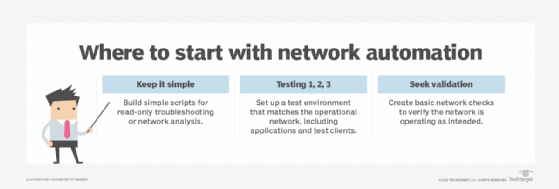
Reduce manual management. Automating network management is considered a best practice but is far too general a notion to implement wholesale. Automation should be kept simple, low risk and quickly implementable to start. For instance, network teams can automate device locators to find out where a device connects to the network, perform application connectivity checks, verify each network infrastructure device is properly connected to its neighbor, and find discrepancies between parts of network configurations and the organization's configuration templates. As teams achieve success with this low-hanging fruit, they can move up to automating intermediate and advanced tasks, which include verifying Border Gateway Protocol connectivity and automating access control list updates.
Evaluate the scope and risk of changes. Even the network change management process is driven by best practices, which reduce the risk of a failed change. Applying some basic operating principles, such as evaluating the scope of a proposed change, will prevent possible missteps down the road.
Some questions include the following:
- What are the number of endpoints affected by the change?
- What is the importance of the services a change might affect?
Evaluation of the scope should be accompanied by a risk analysis. After that, network teams should put the change through a peer review, pre-deployment testing and validation, implementation and testing, and documentation and network management updates.
Make processes, including troubleshooting, repeatable through documentation. Documentation is useful in most areas of network management, especially when trying to troubleshoot issues with wired and wireless connectivity. For instance, how IT approaches identifying and resolving wireless network connectivity problems should be documented and repeatable to save time and avoid misconfigurations.
TechTarget contributor Lee Badman offered 10 steps to troubleshooting wireless network connection problems that take readers from basic problems, such as making sure the correct Wi-Fi access point is selected, to more advanced client issues.
Network management challenges
Even with best practices in place, network management can pose challenges for enterprises.
Legacy networks. If an organization is relying on cumbersome legacy monitoring tools, then managing disparate environments -- including virtual and cloud-based networks -- could prove difficult. Legacy tools also can impede efforts to gain end-to-end visibility.
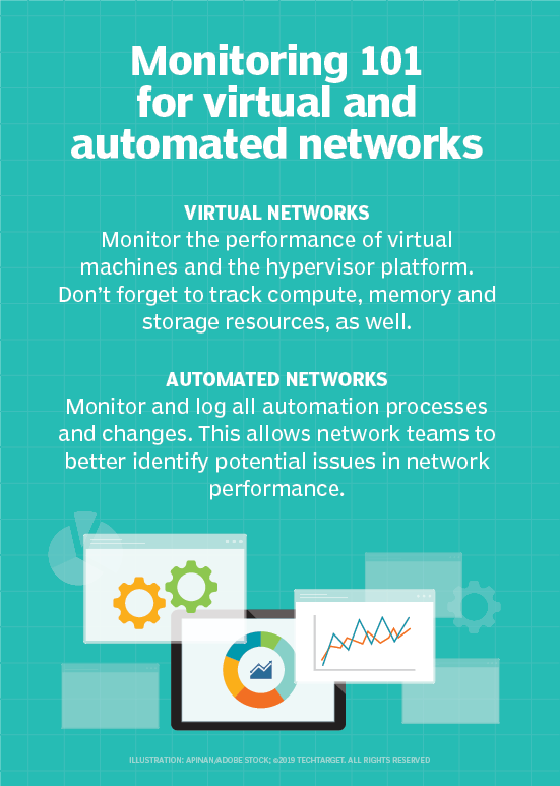
Complexity and abstraction. Modern technologies also have their challenges as they add to the complexity of network environments. For example, in virtualized environments, end-to-end visibility can be complicated by reporting gaps that can result when traditional network monitoring tools are used to track the hypervisors used to manage virtual machines.
Overlay networks are similarly problematic, as they can obscure underlying hardware and software from monitoring tools.
Interconnectivity. Even as multi-cloud environments gain interest, the bridges that connect these environments are causing provisioning headaches, performance inconsistencies and security blind spots that network professionals are left to resolve. This makes applying sound network management principles a difficult endeavor.
Network management tools
Network management vendors are spending a great deal of time trying to reduce the complexity and increase the interoperability and feature sets of their products. Even so, most companies still use multiple network management tools for various products and devices, which only adds to the complexity. Below are some examples of progress being made with network management interoperability.
Integrated network monitoring and security
Integrating network management and monitoring with security tools to distill more comprehensive security insights provides incredible value to businesses. With this capability, network managers can play a larger role in addressing security risks, and they will be able to share important information with security teams.
Integrating network management security can also be beneficial when it comes to the labor-intensive task of running security audits. IT teams can automatically verify configurations and standards across devices and relay the results more efficiently.
As-a-service network monitoring
Vendors also are concentrating on how to help network teams monitor cloud environment performance, especially SaaS, PaaS and IaaS. In terms of SaaS monitoring, network teams must find a tool that lets them monitor the end user's path from the internet service provider to the public cloud to measure service latency, DNS speed and accessibility, and content delivery network responsiveness from an end-user perspective.
Check out how network performance monitoring tools have evolved to account for as-a-service environments.
Hybrid cloud monitoring
Cloud providers often help businesses monitor within their own environment only, but a new crop of network monitoring tools is emerging to satisfy the multi-cloud monitoring need. Hybrid cloud monitoring platforms use a passive network appliance to capture traffic data across the entire hybrid cloud environment. Along with analytics capabilities, they can identify a potential break before it causes significant problems.
Open source network monitoring
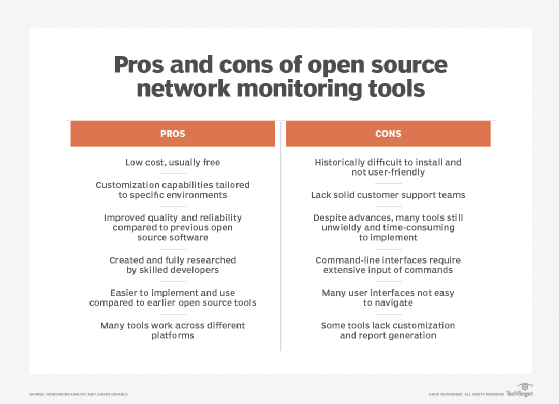
For companies on tighter budgets but still under pressure to meet service-level agreement demands, open source network monitoring is an attractive and cost-effective choice. The industry's most skilled developers have collaborated on these offerings, which have undergone rigorous peer and user review.
Open source tools also can help organizations avoid the increasing licensing costs that arise from adding more components that need monitoring. With open source tools, enterprises can expand the environment they need to manage, including servers and switches, without breaking the budget on licensing and support contracts.
Configuration management
Configuration management improves network maintenance and helps keep track of connected devices, device configurations and device connections. With configuration management, network teams can achieve three goals: maintain accurate configuration records, enable efficient network scans and enable network automation capabilities.
Automated network testing
Automated network testing can supplement network management tools, verifying physical connectivity, routing protocol functionality, path performance and more. However, the same problems that can plague network management around abstraction, virtualization and overlays apply to automated network testing.
Network automation tools come in three varieties:
- tools that were primarily built for server and application automation but have expanded to include the network;
- tools that are purpose-built for the network; and
- software-defined platforms that create a software overlay across LAN hardware.
All of these bring features and capabilities to the table that eliminate manual, error-prone tasks such as configuration backups, tool access control, compliance monitoring and verification, vulnerability assessments and network orchestration. Read more from Andrew Froehlich to explore the leading network automation tools.
Soon, network professionals will be looking to combine network automation tools to create an end-to-end service to aid in design, implementation and testing.
Next-generation network monitoring techniques
One of the most promising technologies for network management is intent-based networking. Intent-based networks use automation and orchestration to change how network configurations are deployed. The goal is to have self-managing, self-healing networks that draw on AI and machine learning to carry out network tasks.
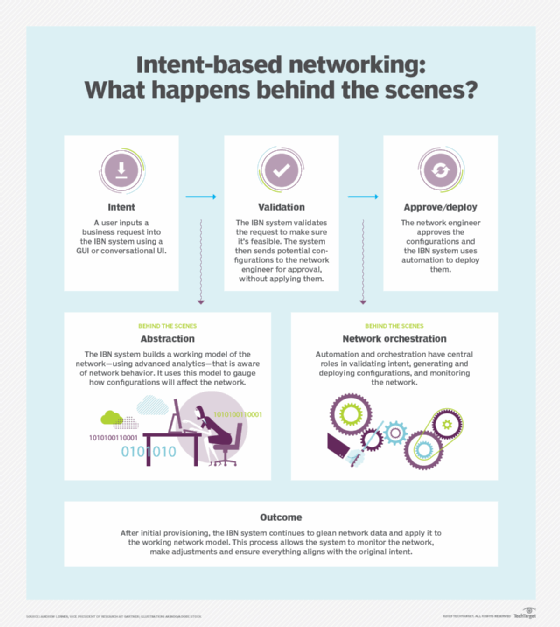
Admittedly, IT teams are wary of this level of automation, fearing it will make them far too removed from day-to-day operations. As organizations hire network professionals, they should ensure candidates are comfortable ceding some control to emerging automation and intelligence tools to better implement automation adoption in the enterprise.
On the security front, AI and machine learning will help network teams discern dangerous activity from harmless anomalies by recognizing disruptive traffic patterns that diverge from normal activity. This becomes especially important in IoT environments.
AI and machine learning also will improve network operations, enabling analytics applications to discover the root cause of an issue and automatically implement the correct fix.
One of the biggest wins to come from AI and machine learning is a significant drop in the volume of events IT staff members must handle each day, potentially decreasing from millions and thousands to just a few critical ones.
Network management is evolving quickly as advanced technologies are built into them, leaving IT teams to become more strategic in how they administer and manage their next-generation networks.