TCP/IP
What is TCP/IP?
TCP/IP stands for Transmission Control Protocol/Internet Protocol and is a suite of communication protocols used to interconnect network devices on the internet. TCP/IP is also used as a communications protocol in a private computer network -- an intranet or extranet.
The entire IP suite -- a set of rules and procedures -- is commonly referred to as TCP/IP. TCP and IP are the two main protocols, though others are included in the suite. The TCP/IP protocol suite functions as an abstraction layer between internet applications and the routing and switching fabric.
TCP/IP specifies how data is exchanged over the internet by providing end-to-end communications that identify how it should be broken into packets, addressed, transmitted, routed and received at the destination. TCP/IP requires little central management and is designed to make networks reliable with the ability to recover automatically from the failure of any device on the network.
Internet Protocol Version 4 (IPv4) is the primary version used on the internet today. However, due to a limited number of addresses, a newer protocol known as IPv6 was developed in 1998 by the Internet Engineering Task Force (IETF). IPv6 expands the pool of available addresses from IPv4 significantly and is progressively being embraced.
How are TCP and IP different?
The two main protocols in the IP suite serve specific functions and have numerous differences. The key differences between TCP and IP include the following:
TCP
- It ensures a reliable and orderly delivery of packets across networks.
- TCP is a higher-level smart communications protocol that still uses IP as a way to transport data packets, but it also connects computers, applications, web pages and web servers.
- TCP understands holistically the entire stream of data that these assets require to operate and it ensures the entire volume of data needed is sent the first time.
- TCP defines how applications can create channels of communication across a network.
- It manages how a message is assembled into smaller packets before they're transmitted over the internet and reassembled in the right order at the destination address.
- TCP operates at Layer 4, or the transport layer, of the Open Systems Interconnection (OSI model).
- TCP is a connection-oriented protocol, which means it establishes a connection between the sender and the receiver before delivering data to ensure reliable delivery.
- As it does its work, TCP can also control the size and flow rate of data. It ensures that networks are free of any congestion that could block the receipt of data. An example is an application that wants to send a large amount of data over the internet. If the application only used IP, the data would have to be broken into multiple IP packets. This would require multiple requests to send and receive data, as IP requests are issued per packet.
- With TCP, only a single request to send an entire data stream is needed; TCP handles the rest.
- TCP runs checks to ensure data is delivered. It can detect problems that arise in IP and request retransmission of any data packets that were lost.
- TCP can reorganize packets so they're transmitted in the proper order. This minimizes network congestion by preventing network bottlenecks caused by out-of-order packet delivery.
IP
- IP is a low-level internet protocol that facilitates data communications over the internet.
- IP delivers packets of data that consist of a header, which contains routing information, such as the source and destination of the data and the data payload itself.
- It defines how to address and route each packet to ensure it reaches the right destination. Each gateway computer on the network checks this IP address to determine where to forward the message.
- IP is limited by the amount of data it can send. The maximum size of a single IP data packet, which contains both the header and the data, is between 20 and 24 bytes. This means that longer strings of data must be broken into multiple data packets that have to be sent independently and then reorganized into the correct order.
- It provides the mechanism for delivering data from one network node to another.
- IP operates at Layer 3, or the network access layer, of the OSI model.
- IP is a connection-less protocol, which means it doesn't guarantee delivery nor does it provide error checking and correction.
Other components in a TCP/IP network
Other components present in a TCP/IP network include subnet masks, network address translation (NAT) and various protocols.
A subnet mask tells a computer, or other network device, what portion of the IP address is used to represent the network and what part is used to represent hosts, or other computers, on the network. A NAT is the virtualization of IP addresses. It helps improve security and decrease the number of IP addresses an organization needs.
Common TCP/IP protocols include the following:
- Hypertext Transfer Protocol. HTTP handles the communication between a web server and a web browser.
- HTTP Secure. HTTP Secure handles secure communication between a web server and a web browser.
- File Transfer Protocol. FTP handles transmission of files between computers.
- Domain name system. DNS translates domain names into IP addresses.
- Simple mail transfer protocol. SMTP is used for email communications and is responsible for the transmission of emails between mail servers.
- User datagram protocols. UDP is a connectionless protocol that offers faster but less dependable data delivery. It's widely used in real-time applications such as video streaming and online gaming.
How does TCP/IP work?
TCP/IP uses the client-server model of communication in which a user or machine -- a client -- is provided a service, such as sending a webpage, by another computer -- a server -- in the network.
Collectively, the TCP/IP suite of protocols is classified as stateless, which means each client request is considered new because it's unrelated to previous requests. Being stateless frees up network paths so they can be used continuously.
The transport layer itself, however, is stateful. It transmits a single message and its connection remains in place until all the packets in a message have been received and reassembled at the destination.
The TCP/IP model differs slightly from the seven-layer OSI networking model designed after it. The OSI reference model defines how applications can communicate over a network.
Why is TCP/IP important?
TCP/IP is the fundamental protocol suite that enables data transfer and communication across the internet and other networks. It's nonproprietary and, as a result, isn't controlled by any single company. Therefore, the IP suite can be modified easily. It's compatible with all operating systems (OSes), so it can communicate with any other system. The IP suite is also compatible with all types of computer hardware and networks.
TCP/IP is highly scalable and, as a routable protocol, can determine the most efficient path through the network. It's widely used in current internet architecture.
The 4 layers of the TCP/IP model
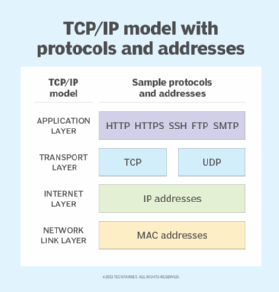
TCP/IP functionality is divided into the following four layers, each of which includes specific protocols:
- Application layer. The application layer is the top layer and provides applications with standardized data exchange. Its protocols include HTTP, FTP, Post Office Protocol 3 (POP3), SMTP, DNS, Dynamic Host Configuration Protocol and SNMP. At the application layer, the payload is the actual application data.
- Transport layer. The transport layer is responsible for maintaining end-to-end communications across the network. TCP handles communications between hosts and provides flow control, multiplexing and reliability. The transport protocols include TCP and User Datagram Protocol (UDP), which is sometimes used instead of TCP for special purposes.
- Internet layer. The internet layer, also called the network layer, deals with packets and connects independent networks to transport the packets across network boundaries. The network layer protocols are IP and Internet Control Message Protocol, which are used for error reporting.
- Network link layer. The network link layer, also known as the network interface layer or data link layer, consists of protocols that operate only on a link -- the network component that interconnects nodes or hosts in the network. The protocols in this lowest layer include Ethernet for local area networks and Address Resolution Protocol.
Uses of TCP/IP
TCP/IP can be used for the following tasks:
- Remote login and interactive file transfer. TCP/IP provides remote login over the network for interactive file transfer to deliver email and webpages over the network.
- Remote access to a file system. TCP/IP provides remote access to a server host's file system, enabling users to access and manage files stored on the server from a remote location.
- Represents information flow. TCP/IP is used to represent how information changes form as it travels over a network from the concrete physical layer to the abstract application layer. It details the basic protocols, or methods of communication, at each layer as information passes through.
- End-to-end data transmission. It outlines how end-to-end communications should be achieved by dividing data into packets, addressing them, transmitting them, routing them and receiving them at the destination.
- Cloud computing. TCP/IP is used in cloud computing to facilitate communication between cloud-based services, applications and virtual machines. TCP/IP ensures that cloud resources and clients communicate reliably and securely across the internet.
Pros and cons of TCP/IP
The advantages of using the TCP/IP model include the following:
- It helps establish a connection between different types of computers.
- It works independently of the OS.
- TCP/IP supports many routing protocols.
- It uses a client-server architecture that's highly scalable.
- TCP/IP can be operated independently.
- It supports several routing protocols.
- It's lightweight and doesn't place unnecessary strain on a network or computer.
The disadvantages of TCP/IP include the following:
- It's complicated to set up and manage.
- The transport layer doesn't guarantee the delivery of packets.
- It isn't easy to replace protocols in TCP/IP.
- It doesn't clearly separate the concepts of services, interfaces and protocols, so it isn't suitable for describing new technologies in new networks.
- It's especially vulnerable to synchronization attacks, which are a type of denial-of-service attack in which a bad actor uses TCP/IP.
TCP/IP model vs. OSI model
TCP/IP and OSI are the most widely used communication networking protocols. The main difference between the two models is that OSI is a conceptual model that isn't practically used for communication. Rather, it defines how applications can communicate over a network. TCP/IP, on the other hand, is a practical execution that's widely used to establish links and network interaction.
The TCP/IP protocols lay out standards on which the internet was created, while the OSI model provides guidelines on how communication must be done. Therefore, TCP/IP is a more practical model.
The TCP/IP and OSI models have similarities and differences. The main similarity is in the way they're constructed to both use layers, although TCP/IP consists of just four layers, while the OSI model consists of the following seven layers:
- Layer 7: the application layer, lets the user -- software or human -- interact with the application or network when the user wants to read messages, transfer files or engage in other network-related activities.
- Layer 6: the presentation layer, translates or formats data for the application layer based on the semantics or syntax that the app accepts.
- Layer 5: the session layer, sets up, coordinates and terminates conversations between apps.
- Layer 4: the transport layer, transfers data across a network and provides error-checking mechanisms and data flow controls.
- Layer 3: the network layer, moves data into and through other networks.
- Layer 2, the data link layer, handles problems that occur as a result of bit transmission errors.
- Layer 1: the physical layer, transports data using electrical, mechanical or procedural interfaces.
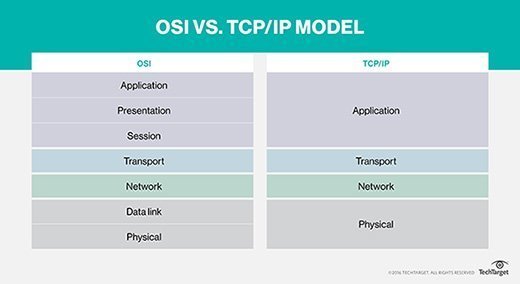
The application layer is the upper layer for both the TCP/IP model and the OSI model. Although this layer performs the same tasks in each model, those tasks can vary depending on the data each receives.
The functions performed in each model are also similar because each uses a network layer and transport layer to operate. The TCP/IP and OSI models are each mostly used to transmit data packets. Although they use different means and different paths, they still reach their destinations.
The similarities between the TCP/IP model and the OSI model include the following:
- They're both logical models.
- They define networking standards.
- They divide the network communication process into layers.
- They provide frameworks for creating and executing networking standards and devices.
- They enable one manufacturer to make devices and network components that can coexist and work with the devices and components made by other manufacturers.
The differences between the TCP/IP model and the OSI model include the following:
- TCP/IP uses just one layer -- the application layer -- to define the functionalities of the upper layers, while OSI uses three layers -- application, presentation and session.
- TCP/IP uses one layer -- the physical layer -- to define the functionalities of the bottom layers, while OSI uses two layers -- physical and data link.
- The TCP/IP header size is 20 bytes, while the OSI header is 5 bytes.
- TCP/IP is a protocol-oriented standard, whereas OSI is a generic model based on the functionalities of each layer.
- TCP/IP follows a horizontal approach, while OSI follows a vertical approach.
- In TCP/IP, the protocols were developed first and then the model. In OSI, the model was developed first and then the protocols in each layer were developed.
- TCP/IP helps establish a connection between different types of computers, whereas OSI helps standardize routers, switches, motherboards and other hardware.
The history of TCP/IP
The Defense Advanced Research Projects Agency, the research branch of the U.S. Department of Defense, created the TCP/IP model in the 1970s for use in ARPANET, a wide area network that preceded the internet. TCP/IP was originally designed for the Unix OS, and it has been built into all the OSes that came after it.
The TCP/IP model and its related protocols are now maintained by the IETF.
Protocols are the building block of networks. Discover the roles and functionalities of the most used network protocols.